Buy links on this page go through our /go/ redirects to the manufacturer or retailer. We earn nothing from them today; that may change. Disclosure.
In short
Start with the cable and the port. PlayStation says to use the HDMI cable that came with the PS5 or an Ultra High-Speed HDMI cable, plug the console straight into the TV, and use one of the TV's HDMI 2.1 ports. Xbox gives the same advice for Series X. Then check the TV firmware and the console's video settings.
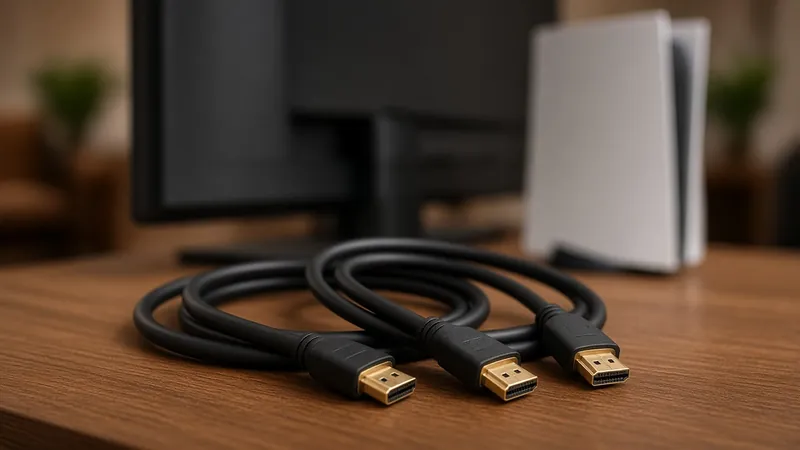
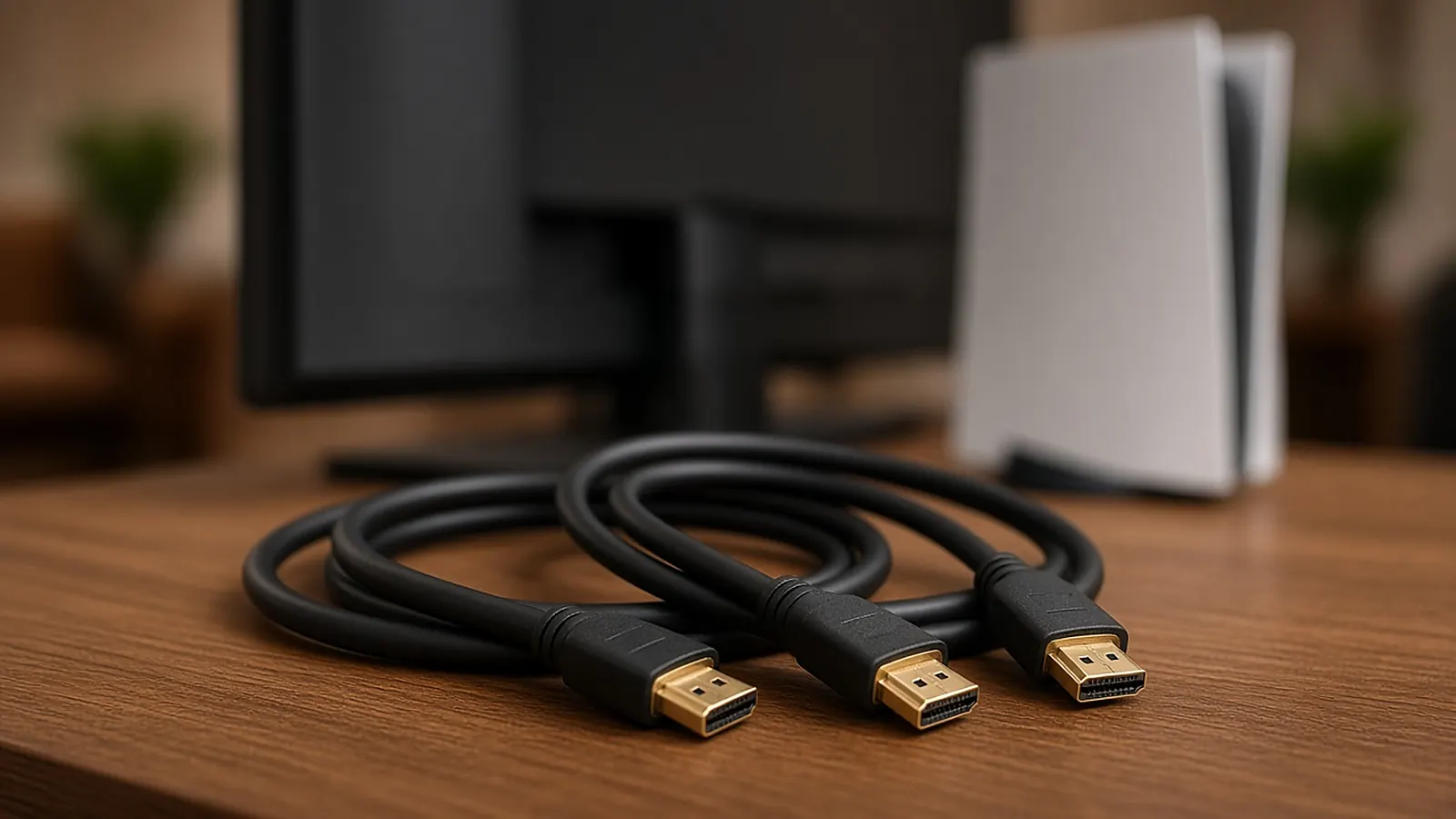
Certified Ultra High Speed HDMI cables (48Gbps):
Cable Matters 48Gbps certified Belkin AV10175 Ultra High SpeedThe checklist
- Does the TV support 4K at 120Hz? PlayStation lists this first. Check the TV manual.
- Update the TV. PlayStation and Xbox both say to install the latest TV firmware. Xbox also says to update any AV receiver.
- Use the right cable. Use the cable from the box or an Ultra High Speed HDMI cable rated for 4K 120Hz. Xbox says the Series X box includes an Ultra High Speed cable and recommends using it.
- Connect directly. PlayStation says to connect the PS5 straight to the TV, not through a receiver or soundbar. Xbox says to remove any device between the TV and console and plug the TV straight into the Xbox, then send audio over ARC or eARC.
- Try the other HDMI ports. Xbox says on some TVs only specific ports support HDMI 2.1, and suggests trying each port. PlayStation says to use the TV's HDMI 2.1 port and notes the TV may need a setting changed.
PS5 settings
- In Settings > Screen and Video > Video Output, PlayStation's checklist says Resolution should be Automatic or 2160p and Video Transfer Rate should be Automatic.
- The 120 Hz Output setting is on the same Video Output screen. PlayStation says to turn it on for TVs and games that support 120Hz.
Xbox Series X|S check
Go to Settings > General > TV & Display Options > 4K TV details. Xbox says you should see green check marks across the board. If not, try the other TV ports and the cable steps above, and check your TV's settings for a mode that turns on 4K or HDR.
How we work: the steps come from PlayStation's 4K guide and Xbox Wire. Cable speeds come from HDMI.org. Sources are listed below.
Questions people ask
Why won't my PS5 output 4K 120Hz?
PlayStation's checklist: the TV must support 4K120, be updated, use the included or an Ultra High Speed cable, connect directly (not through a receiver), and use an HDMI 2.1 port. Then set Resolution and Video Transfer Rate to Automatic.
How do I check 4K 120Hz on Xbox Series X?
Xbox says to go to Settings > General > TV & Display Options > 4K TV details. You should see green check marks across the board.
Does my soundbar or receiver block 120Hz?
It can. PlayStation lists a receiver in between as a possible cause. Xbox says to connect the console straight to the TV and send audio to the receiver over ARC or eARC.
Sources
Last checked Oct 23, 2026. Cable names and speeds come from HDMI.org. Console steps come from PlayStation and Xbox. Check your TV manual for which of its ports support 4K 120Hz.