
USB-C & Thunderbolt cables
Which USB-C cable do I need?
- 9 sources
Buy links on this page go through our /go/ redirects to the manufacturer or retailer. We earn nothing from them today; that may change. Disclosure.
Quick answer
USB-C is only the physical plug shape. Two cables that fit the exact same oval port can have completely different wires and chips inside. One USB-C cord in your desk drawer — like the white woven USB-C Charge Cable shipped with a MacBook or iPhone — wires only four USB 2.0 data pins (480 Mbps) plus power, so an external monitor plugged into it will show "No Signal" every time. Another cable with the same connector wires 10 to 40 Gbps high-speed lanes for 4K/8K DisplayPort video and an E-Marker chip for 100W or 240W laptop charging.
Certified full-feature USB-C & Thunderbolt 4 cables: look for explicit wattage (100W/240W) and video/data ratings (20Gbps, 40Gbps, or Thunderbolt 4).
Plugable TB4 240W (40Gbps) Plugable USB-C 240W (20Gbps) CalDigit TB4 / USB4 Cable Belkin USB-C CablesThe three specs hidden inside every USB-C cable
| Spec inside the cable | Options on the market | What happens if your cable lacks it |
|---|---|---|
| 1. High-speed SuperSpeed lanes (Video) | None (USB 2.0 charge cable) vs 10 / 20 / 40 Gbps (USB 3.2, USB4, Thunderbolt 3/4) | VESA's DisplayPort over USB-C specification sends video over the cable's high-speed SuperSpeed differential pairs. A USB 2.0 charge cable omits those wires, so a USB-C monitor can charge your laptop while displaying "No Signal." |
| 2. E-Marker power chip (Wattage) | 60W (3A, no chip) vs 100W (20V/5A SPR chip) vs 240W (48V/5A EPR chip) | Under the USB-IF Power Delivery spec, any charger and laptop cap current at 3A (60W max) unless the cable contains an Electronic Marker (E-Marker) chip confirming 5A capability (100W at 20V, or up to 240W at 48V). |
| 3. Data speed rating (Gbps) | 480 Mbps (USB 2.0) · 10/20 Gbps (USB 3.2) · 20/40 Gbps (USB4) · 40 Gbps (Thunderbolt 4) | Plug an external NVMe SSD or dock into a 480 Mbps charge cord and file transfers drop from ~1,000–3,000 MB/s down to roughly 35–40 MB/s. |
Guides in this section
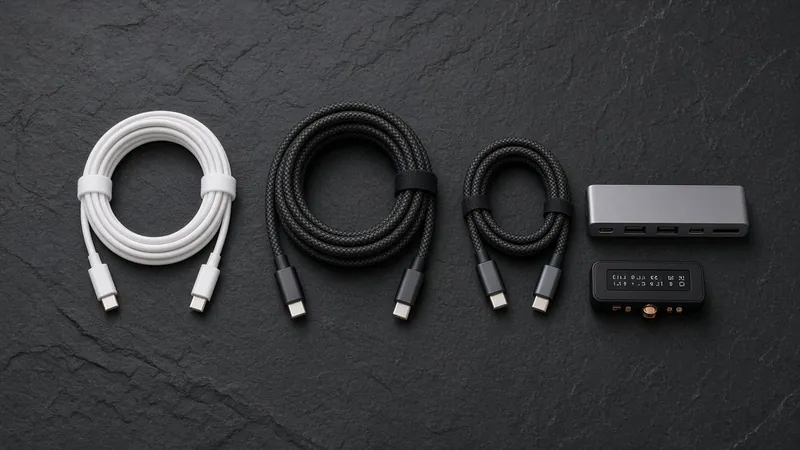
Quick lookup: which USB-C cable matches your job?
| What you are connecting | Minimum cable spec to buy | What to check on the plug or box |
|---|---|---|
| Phone, tablet, earbuds, or 60W ultrabook charging only | USB-C 2.0 (480 Mbps), 60W (3A) | Any USB-IF certified 60W cable works. Does not support external monitors. |
| 14-inch / 16-inch laptop or gaming laptop charging only (65W–240W) | USB-C 2.0 (480 Mbps), 100W or 240W EPR (5A E-Marked) | Look for the USB-IF 240W badge (such as Apple's 2m 240W USB-C Charge Cable). Note: charge-only 240W cords still do not carry video. |
| Single 4K 60Hz USB-C monitor + laptop charging | USB 3.2 Gen 2 (10 Gbps) or USB4 (20 Gbps) with DP Alt Mode + 100W/240W PD | Look for 10Gbps / 20Gbps plus 4K 60Hz / DP Alt Mode and 100W or 240W on the spec sheet. |
| Dual 4K 60Hz monitors, 6K/8K display, or Thunderbolt / USB4 dock | Thunderbolt 4 (40 Gbps, 100W or 240W EPR) | Look for the Thunderbolt lightning bolt + 4 icon. Thunderbolt 4 mandates 40 Gbps data, two 4K 60Hz displays (or one 8K), and backward compatibility with USB4, TB3, and USB-C. |
How to read the symbols on a USB-C plug
- Lightning bolt with a "4" (or "3"): Thunderbolt 4 or Thunderbolt 3. As Apple Support (article 118204) and Plugable note, a certified Thunderbolt 4 cable always supports 40 Gbps data, DisplayPort video, and at least 100W Power Delivery (up to 240W on EPR models).
- USB-IF "20Gbps" or "40Gbps" badge (often with a wattage badge): USB-IF replaced the old "SuperSpeed USB 10Gbps" naming with direct speed and power logos — 20Gbps or 40Gbps for data/video cables, paired with 60W or 240W for power.
- No markings on a white rubber or woven cord: almost always a USB 2.0 charge cable. Apple Support's cable identification guide (111750 / 118204) explicitly notes that the white Apple USB-C Charge Cable transfers data at USB 2.0 (up to 480 Mbps) and does not support video.
Watch the "240W" trap when buying for a monitor: USB-IF certifies both charge-only 240W cables (USB 2.0, 480 Mbps, zero video lanes) and full-feature 240W cables (20 Gbps or 40 Gbps with DisplayPort video). If you are plugging into a monitor or dock, verify that the cable lists 10Gbps, 20Gbps, 40Gbps, or Thunderbolt 4 in addition to its wattage.
How we work: every bandwidth figure, wattage tier, and pin requirement in this section comes from USB Implementers Forum (USB-IF), VESA DisplayPort, Apple Support, Plugable, and CalDigit documentation. All sources are linked at the bottom of each page.
Questions people ask
Are all USB-C cables the same?
No. USB-C only defines the reversible 24-pin plug shape. Inside the jacket, a basic charging cord wires only USB 2.0 data pins (480 Mbps) and 3A power (60W max), while a full-feature USB-C or Thunderbolt 4 cable wires high-speed SuperSpeed lanes for 4K/8K DisplayPort video (10 to 40 Gbps) and an E-Marker chip for 100W or 240W charging.
Can any USB-C cable connect a laptop to a monitor?
No. To carry a video signal under VESA's DisplayPort over USB-C specification, the cable must include high-speed SuperSpeed lanes (rated for at least 10 Gbps USB 3.2, 20/40 Gbps USB4, or 40 Gbps Thunderbolt 3/4). White USB-C charging cables — including the Apple USB-C Charge Cable — wire only USB 2.0 (480 Mbps) and will cause the monitor to show No Signal.
How can I tell what kind of USB-C cable I already have?
Inspect the plastic or metal housings on both ends. A lightning bolt icon with a 3 or 4 means Thunderbolt 3 or 4 (40 Gbps + video + 100W/240W). A USB-IF badge showing 20Gbps or 40Gbps and 60W or 240W tells you both the data/video speed and maximum power. If both ends are completely blank (or only say 60W/240W with no Gbps rating), treat it as a USB 2.0 charge-only cord.
Sources
Last checked Oct 23, 2026. USB-C port features vary by laptop and monitor model; check your computer and display tech specs before buying.
- USB-IF: USB Charger (USB Power Delivery)
- USB-IF: USB4 Specification
- USB-IF: USB Type-C Cable and Connector Specification
- VESA: DisplayPort over USB-C (DP Alt Mode)
- Apple Support: About the Apple Thunderbolt Pro Cables
- Apple Support: About the Apple Thunderbolt 3 (USB-C) Cable
- Plugable: Difference Between Thunderbolt 3, Thunderbolt 4, and USB4
- Plugable: Thunderbolt 4 240W Cable (1m) Tech Specs
- CalDigit: Thunderbolt 4 / USB4 Cable Specifications
Keep going
Related guides