Buy links on this page go through our /go/ redirects to the manufacturer or retailer. We earn nothing from them today; that may change. Disclosure.
In short
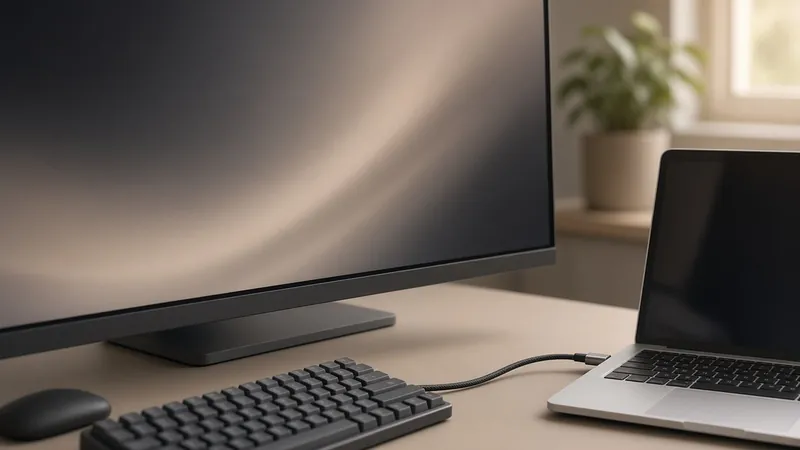
It is the single most common USB-C monitor problem: you plug your laptop into a USB-C monitor, the laptop's battery icon immediately lights up as charging, and two seconds later the monitor shows "No USB-C Signal" and goes to sleep. Because USB Power Delivery (charging) and VESA DisplayPort Alt Mode (video) run on completely separate pins inside the connector, a connection can deliver 60W–100W of power while carrying zero video. Work through these six checks in order — Check #1 alone fixes the majority of setups.
Need a replacement USB-C cable guaranteed to carry 4K/8K video + charging?
Plugable TB4 240W (40Gbps) Plugable USB-C 240W (20Gbps) CalDigit TB4 / USB4 Cable Belkin USB-C Video Cables1. Swap out the white charging cable for a video-rated USB-C cable
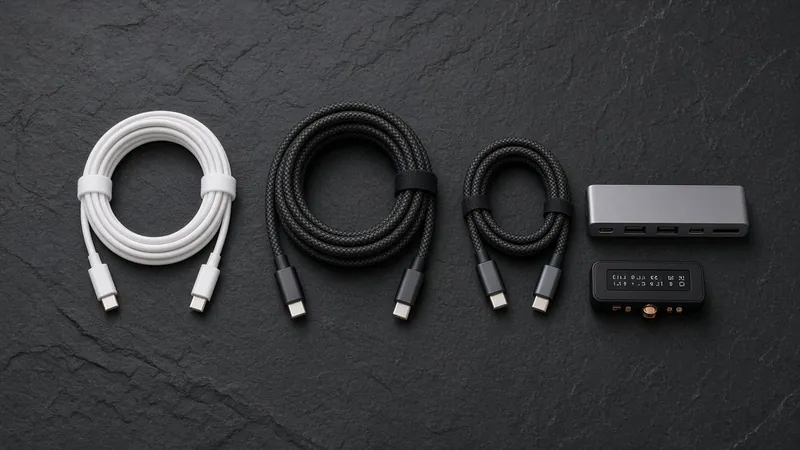
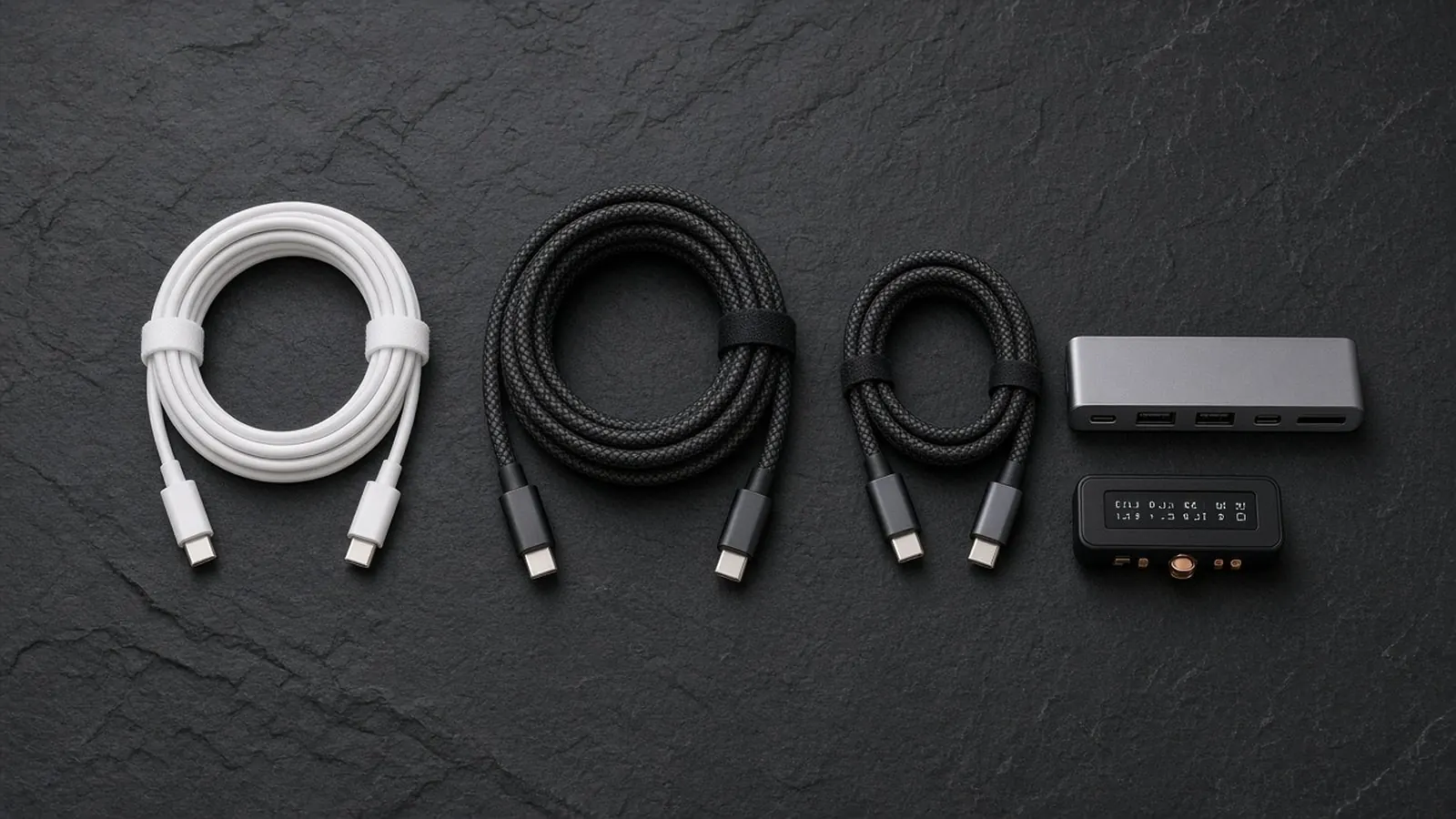
If you reached for the white USB-C cable that came with your MacBook power adapter, iPad, or iPhone, that is the culprit. In Apple Support articles 118204, 111750, and 105099, Apple states directly that the Apple USB-C Charge Cable is limited to USB 2.0 data (480 Mbps) and does not support video. The same is true for nearly every 60W/100W/240W "charging cable" sold for phones and laptops.
- What to use instead: use the thick, shorter black USB-C cable that came inside the monitor's own box (usually 0.8 m to 1.0 m long), or a cable explicitly rated for USB 3.2 Gen 2 (10Gbps/20Gbps), USB4 (20Gbps/40Gbps), or Thunderbolt 3 / Thunderbolt 4 (40Gbps).
- Look at the plug ends: a lightning bolt icon (Thunderbolt 3 or 4) or a stamped
10Gbps/20Gbps/40Gbpslabel confirms the high-speed SuperSpeed video lanes are wired inside.
2. Verify that the computer's USB-C port supports DisplayPort video
Not every USB-C port on a desktop or Windows laptop is wired to the graphics card. As VESA and BenQ's DisplayPort Alt Mode guide explain, a port must support DisplayPort Alt Mode (DP Alt Mode) or Thunderbolt 3 / 4 to output video:
- Windows laptops and desktops: check the small icon printed next to the USB-C port. A lightning bolt (Thunderbolt) or a "D" symbol (DisplayPort) confirms video support. A port with only a battery icon (charging only) or a plain USB trident with no D icon is often data-only and cannot drive a monitor.
- Mac mini (2024) and Mac Studio front ports: Apple Support's port guide (article 109523) specifically notes that the two front USB-C ports on the 2024 Mac mini and on M1 Max / M2 Max / M4 Max Mac Studio models are USB 3 (10 Gbps) data ports and do not support external displays. Plug the monitor into one of the rear Thunderbolt ports marked with the lightning bolt symbol.
3. Check which USB-C port you used on the back of the monitor
Many USB-C monitors (including Dell UltraSharp, LG UltraFine/UltraWide, BenQ PD/MA series, and HP Series 7 displays) have two or three USB-C ports on the rear panel that do completely different jobs:
- Only one is the Upstream Video + Power Delivery port: usually labeled with a small laptop icon,
65W/90W/96W, or a DisplayPort/Thunderbolt symbol next to the jack. - The others are Downstream USB data ports (15W max) or Daisy-Chain Out ports: plugging your laptop into a 15W downstream accessory port will trickle-charge the laptop or trigger a "slow charger" warning while the screen says "No USB-C Signal." Move the cable to the high-wattage upstream USB-C port.
4. Manually select "USB-C" in the monitor's input menu
Monitors that previously had an HDMI or DisplayPort cable attached often disable input auto-switching or stay locked on HDMI 1. Press the joystick or input button on the monitor to open its on-screen display (OSD) and manually switch the input source to USB-C (or Type-C / Thunderbolt).
5. Open the laptop lid and check external display limits
- Clamshell mode needs power + keyboard/mouse wake: if your laptop lid is closed, macOS and Windows may not initialize a newly connected external monitor until the lid is opened (or an external keyboard/mouse and AC power are active). Open the laptop lid for 10 seconds while connecting.
- Base M1 / M2 Mac external display limit: if you already have one monitor plugged into a base M1 or M2 MacBook Air or 13-inch MacBook Pro, Apple's display support table (article 101571) notes those chips natively support only one external display at a time. Unplug the first display to confirm the second monitor works.
6. Unplug the monitor's wall power cord for 60 seconds
A USB-C monitor contains a built-in USB Power Delivery and DP Alt Mode controller chip that stays powered even when the monitor's power button is turned off. If the PD/Alt-Mode handshake hangs after a laptop sleep cycle, unplugging the USB-C cable alone won't reset the controller. Unplug the monitor's AC power cord from the wall, wait 60 seconds for the capacitors to drain, plug AC power back in, and reconnect the video-rated USB-C cable.
How we work: every troubleshooting step on this page is drawn from Apple Support documentation (articles 118204, 111750, 109523, 105099, and 101571), VESA DisplayPort over USB-C specs, and BenQ's DP Alt Mode guide, linked below.
Questions people ask
Why is my USB-C monitor charging my laptop but saying No Signal?
Charging (USB Power Delivery) and video (DisplayPort Alt Mode) use different wires inside the USB-C cable. If you used a white USB-C charging cable — which only wires USB 2.0 data (480 Mbps) and power — the monitor can charge your laptop at 60W–100W while receiving zero video signal. Swap to the USB-C video cable included with the monitor or a Thunderbolt 4 / USB 3.2 Gen 2 cable.
How do I know if my laptop's USB-C port supports video output?
Check the symbol printed next to the port or look up your laptop's tech specs for 'DisplayPort Alt Mode' or 'Thunderbolt 3 / 4.' A lightning bolt icon or a 'D' DisplayPort icon confirms video output. Note that on the 2024 Mac mini and Mac Studio, Apple Support (article 109523) notes the front USB-C ports are data-only; external monitors must plug into the rear Thunderbolt ports.
Why did my USB-C monitor suddenly stop detecting my laptop after sleep?
The monitor's internal USB-C Power Delivery / DisplayPort handshake controller stays powered even when the screen is switched off and can hang after a sleep wake cycle. Unplug the USB-C cable from the laptop, unplug the monitor's AC power cord from the wall outlet for 60 seconds, then plug the power cord and USB-C video cable back in.
Sources
Last checked Oct 23, 2026. USB-C port features vary by laptop and monitor model; check your computer and display tech specs before buying.
- Apple Support: About the Apple Thunderbolt Pro Cables
- Apple Support: About the Apple Thunderbolt 3 (USB-C) Cable
- Apple Support: Identify the ports on your Mac
- Apple Support: Charge and connect with the USB-C connector on your iPhone
- Apple Support: How many displays can be connected to MacBook Pro
- VESA: DisplayPort over USB-C (DP Alt Mode)
- BenQ: What is USB-C DisplayPort (DP Alt Mode) and Why it Matters
- Plugable: Thunderbolt 4 240W Cable (1m)